Acabo de terminar un volumen importante del NT, así que pensé escribir algunas reflexiones sobre cómo organizaba mi flujo de trabajo. Puse “buenas prácticas” en el título porque es una frase conocida y porque “prácticas bastante buenas que probablemente podrían mejorarse” ocupaba demasiado espacio. Espero que, con el tiempo, otras personas hagan cosas similares aquí, para que podamos obtener buenas ideas de eficiencia unos de otros.
Todo esto ocurre después de que el libro esté más o menos maquetado, y mi única tarea restante era pasar por cada página y asegurarme de que las líneas terminaran en la parte inferior de la página. Este es un paso que toma muchas horas pero es extremadamente repetitivo: ¡una gran receta para optimizar!
- No abrí el archivo Changes.txt dentro de PTXprint: si lo abres en PTXprint y también externamente, tienes que hacer Refresh (Actualizar) después de cada cambio. Pero al hacerlo de esta manera, puedo editarlo externamente sin necesidad de actualizar.
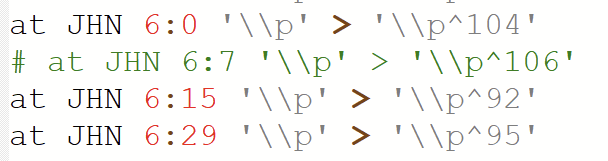
- Abrí Changes.txt en Notepad++. Luego cambié el “lenguaje” a “Shell”. No es (obviamente) un documento de shell en realidad, pero usa caracteres de comentario #, por lo que la marca visual y colorida es muy útil.
- Para aislar mi entorno de trabajo sin cerrar otros programas, moví tres cosas a un nuevo escritorio de Windows: Notepad++, PTXprint y Sumatra.
- Cada vez que quería agregar un nuevo cambio (el 95% de mis cambios eran simplemente usar el sistema p^95 para encoger y estirar párrafos), presionaba Ctrl-d en Notepad++ para agregar una línea (también usé muchos otros comandos de teclado, pero recomendaría buscarlos en línea a medida que los necesites. Ctrl-l (como en llama) elimina una línea, etc.).
- Usé Ctrl-flechas para moverme a la izquierda y a la derecha por palabras completas en lugar de caracteres individuales.
- Usé Alt-Tab para cambiar entre programas y Ctrl-P para imprimir en PTXprint. Mi objetivo era no tocar nunca el ratón ni la superficie táctil, y casi siempre podía hacerlo.
- Usé la vista de libro en Sumatra para poder ver la doble página como si el libro estuviera abierto.
- Trabajé en un libro a la vez, para no tener que esperar a que se compilara todo el NT, y cuando comenzaba un libro, solo imprimía los primeros 5 capítulos o así. Si era necesario después de llegar al final de mi rango, lo agregaba (por ejemplo, “MAT 1-10”) y si un capítulo llegaba a comenzar en la parte superior de una página impar, haría que las ejecuciones futuras comenzaran desde ahí (por ejemplo, si el cap. 6 comenzaba en una página impar, entonces solo imprimiría “MAT 6-11”).
- Si era necesario al final de los libros, usaba Changes.txt para agregar una página en blanco, para que los libros siempre tuvieran un número par de páginas. Esto significaba que los nuevos libros siempre comenzaban al principio de una página impar (tendrás que decidir si estás dispuesto a tener páginas en blanco a veces).
- Entrené a mi esposa para que hiciera gran parte de esto también, lo cual me ahorró horas

- Mientras escribía esto, ¡se me ocurrió otra idea! Probablemente la próxima vez que haga esto, agregaré la llamada de línea de comandos de PTXprint al sistema de macros de Notepad++, para que pueda imprimir el archivo con un comando de teclado desde Notepad++ y no tenga que tener PTXprint abierto en absoluto.
Having just finished a major NT volume, I thought I’d write up some thoughts on how I organized workflow. I wrote “best practices” in the topic because that’s a well known phrase, and because “pretty good practices which could probably be improved upon” took too much space. I’m hoping over time that other people do similar things here, so that we can get good ideas for efficiency from each other.
This all takes place after the book was more or less laid out, and my one remaining task was to go through each page and make sure the lines ended at the bottom of the page. This is a step which takes many hours but is extremely repetitive–a great recipe for streamlining!
- I didn’t open the Changes.txt file within PTXprint–if you open it in PTXprint and also externally, you have to Refresh after each change. But by doing this I can edit it externally without needing to refresh.
- I opened Changes.txt in Notepad++. I then changed the “language” to “Shell”. It’s (obviously) not actually a shell document, but it uses # comment characters and so the visual, colorful markup is very helpful.
- In order to isolate my work environment without closing other programs, I moved three things to a new Windows desktop: Notepad++, PTXprint, and Sumatra.
- Each time I wanted to add a new change–95% of my changes were simply using the p^95 system to shrink and stretch paragraphs–I hit Ctrl-d in Notepad++ to add a line (I also used lots of other keycommands, but I’d recommend looking them up online as you need them. Ctrl-l (as in llama) deletes a line, etc.)
- I used Ctrl-arrow keys to move left and right full works instead of single characters.
- I used Alt-Tab to switch between programs, and Ctrl-P to print in PTXprint. My goal was to never touch the mouse or touchpad, and I could get by with that almost always.
- I used Book View in Sumatra so that I could see the spread as if the book were open.
- I worked on one book at a time, so I wouldn’t have to wait for the entire NT to compile, and when I started a book, I would only print the first 5 or so chapters. If needed after I got to the end of my range, I’d add (so “MAT 1-10”) and if a chapter ever happen to start at the top of an odd page, I would have future runs start from there (so, if ch.6 started an odd page, I would then only print “MAT 6-11”).
- If necessary at the end of books I’d use Changes.txt to add a blank page, so that books were always even numbers of pages long. This meant that new books always start at the beginning of an odd page (you’ll have to decide if you’re willing to have blank pages sometimes).
- I trained my wife to do much of this also, which saved me hours
- As I’ve been writing this up, another idea has come to me! Likely next time I do this I’ll add PTXprint command line call to Notepad++'s macro system, so that I can print the file with a key command from Notepad++ and won’t need to have PTXprint open at all.
Traducción automática desde English