Un élément utile dans la boîte de dialogue Give Feedback or Report a Problem est que le rapport inclut un fichier journal Paratext, qui indique souvent plus de détails sur ce qui s'est passé.
Mais si Paratext se ferme soudainement, ou si Windows indique qu'il a cessé de fonctionner, et que vous redémarrez Paratext et soumettez un rapport de problème, le journal Paratext n'inclura probablement pas les événements survenus lorsque Paratext s'est arrêté, car il a probablement quitté l'application avant d'avoir eu la chance d'enregistrer le fichier journal.
Donc, si vous souhaitez signaler un plantage ou une sortie soudaine, voici comment vous pouvez nous fournir plus d'informations techniques.
Sous Windows, il existe un programme appelé Event Viewer (Visionneuse d'événements). Vous pouvez le rechercher dans le menu Démarrer.
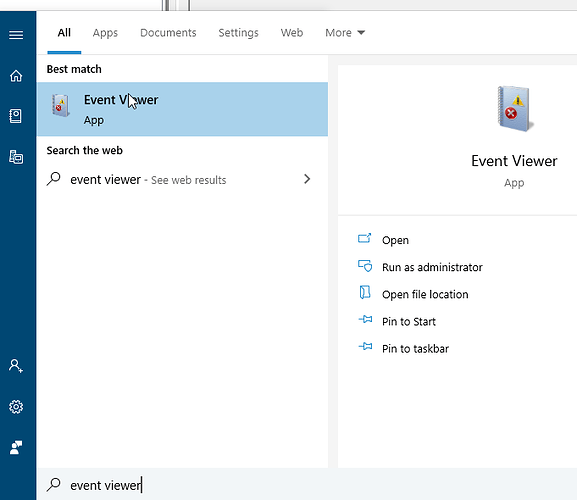
image681×590 19.6 KB
Une fois Event Viewer ouvert, ouvrez le dossier “WIndows Logs” à gauche et sélectionnez Application.
Parcourez maintenant la liste au milieu pour trouver un élément étiqueté “Error” (Erreur) et voyez s'il mentionne Paratext.
Cet exemple montre un événement provenant de Paratext.
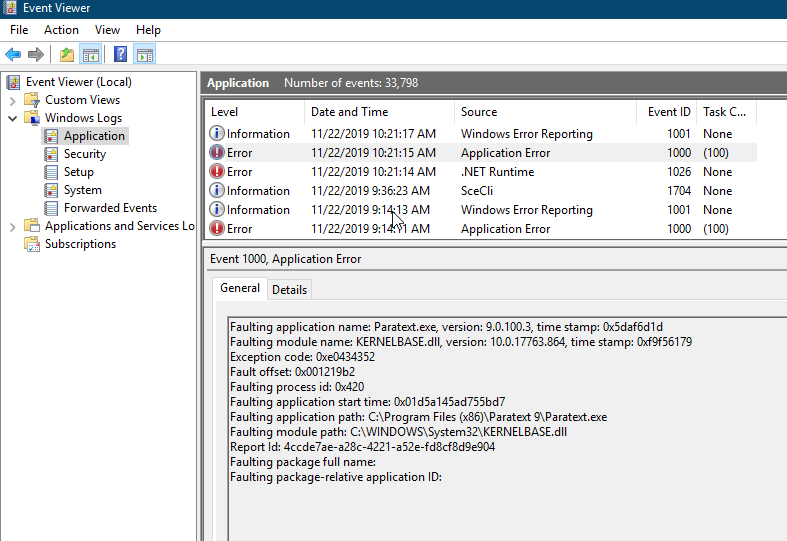
image787×541 32.9 KB
Pour copier les informations à nous envoyer, faites un clic droit sur l'élément, choisissez “Copy > Copy details as text” (Copier > Copier les détails en tant que texte), puis collez-les dans votre rapport de problème.
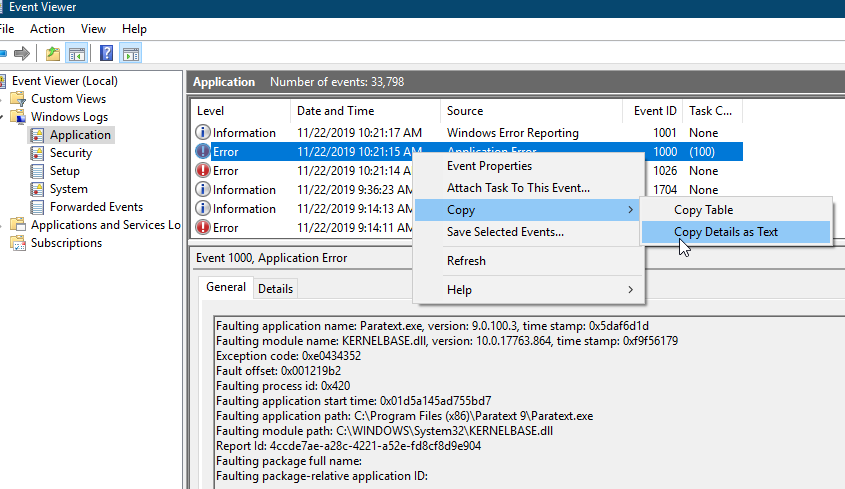
image845×489 34.4 KB
One useful thing in the Give Feedback or Report a Problem dialog is the report includes a Paratext log file which often indicates some more detail about what happened.
But if Paratext suddenly shuts down, or Windows says it has stopped working, if you restart Paratext and submit a problem report, the Paratext log probably will not include the events when Paratext stopped, because it likely exited before it had a change to save the log file.
So if you want to report a crash or sudden exit, here’s how you can give us more technical information.
In Windows, there is a program called Event Viewer. You can search for it in the Start menu.
image681×590 19.6 KB
Once Event viewer opens, open the “WIndows Logs” folder on the left and select Application.
Now look through the list in the middle for something labeled “Error” and see if it mentions Paratext.
This example shows an event from Paratext.
image787×541 32.9 KB
To copy the information to send us, right click on the item, choose “Copy > Copy details as text” then paste that into your problem report.
image845×489 34.4 KB