Мы рекомендуем устанавливать Paratext в расположение по умолчанию, которое является C:\My Paratext 9 Projects.
Лучший способ сделать это — удалить и переустановить Paratext, чтобы изменить расположение папки My Paratext Projects.
Вот несколько ключевых моментов для выполнения этой операции:
-
Перед удалением:
a. Сохраните текущую раскладку (меню Paratext > Save current layout).
-
При удалении:
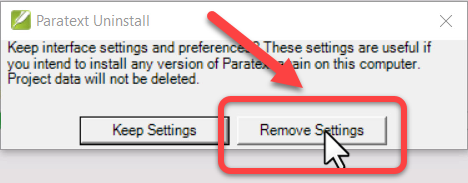
a. Вы должны щелкнуть «Remove settings»:
-
После удаления:
a. Вырежьте и вставьте папку My Paratext 9 Project в новое расположение.
-
При переустановке измените расположение папки My Paratext Projects:
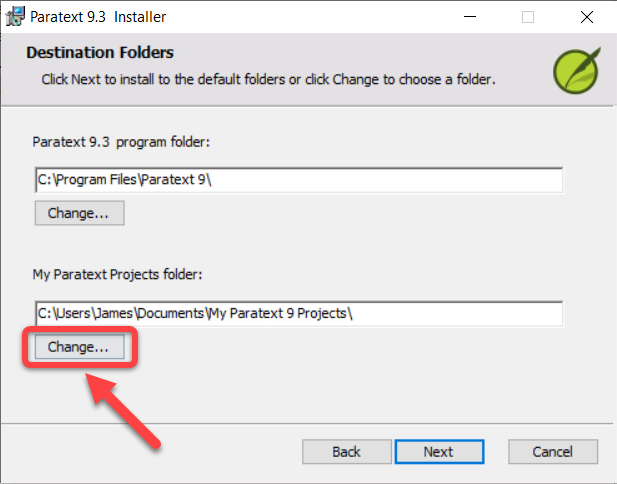
a. Щелкните кнопку Change под папкой My Paratext Projects:
b. Выберите новое расположение (мы рекомендуем расположение по умолчанию, которое является C:\My Paratext 9 Projects).
c. Щелкните OK
- Продолжите установку
We recommend installing Paratext in the default location, which is C:\My Paratext 9 Projects.
The best way to do this is to uninstall and reinstall Paratext to make a change to My Paratext Projects folder location.
Here are a couple of key points for doing this:
-
Before uninstalling:
a. Save your current layout (Paratext menu > Save current layout).
-
When uninstalling:
a. You must click “Remove settings”:
-
After uninstalling:
a. Cut and paste the My Paratext 9 Project folder to the new location.
-
When reinstalling, change the My Paratext Projects folder location:
a. Click the Change button under My Paratext Projects folder:
b. Choose the new location (We recommend the default location, which is C:\My Paratext 9 Projects).
c. Click OK
- Continue with the installation
Переведено машиной с языка English








