Nous recommandons d’installer Paratext à l’emplacement par défaut, qui est C:\My Paratext 9 Projects.
Le meilleur moyen de faire cela est de désinstaller puis de réinstaller Paratext pour modifier l’emplacement du dossier My Paratext Projects.
Voici quelques points clés à respecter pour cela :
-
Avant la désinstallation :
a. Enregistrez votre disposition actuelle (menu Paratext > Save current layout).
-
Lors de la désinstallation :
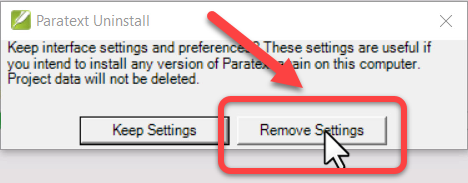
a. Vous devez cliquer sur « Remove settings » :
-
Après la désinstallation :
a. Coupez et collez le dossier My Paratext 9 Project vers le nouvel emplacement.
-
Lors de la réinstallation, modifiez l’emplacement du dossier My Paratext Projects :
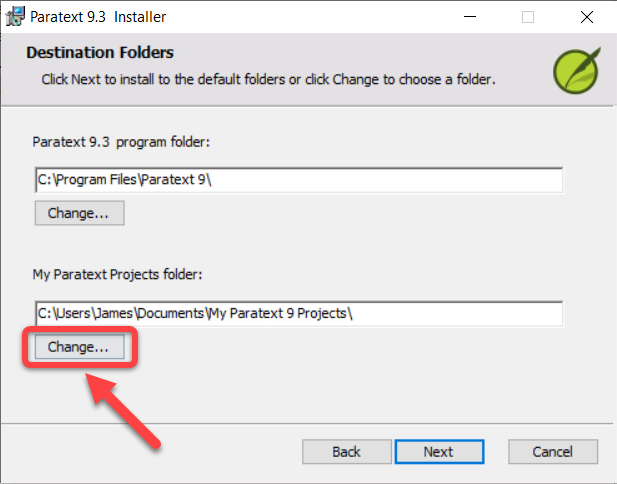
a. Cliquez sur le bouton Change sous My Paratext Projects folder :
b. Choisissez le nouvel emplacement (nous recommandons l’emplacement par défaut, qui est C:\My Paratext 9 Projects).
c. Cliquez sur OK
- Poursuivez l’installation
We recommend installing Paratext in the default location, which is C:\My Paratext 9 Projects.
The best way to do this is to uninstall and reinstall Paratext to make a change to My Paratext Projects folder location.
Here are a couple of key points for doing this:
-
Before uninstalling:
a. Save your current layout (Paratext menu > Save current layout).
-
When uninstalling:
a. You must click “Remove settings”:
-
After uninstalling:
a. Cut and paste the My Paratext 9 Project folder to the new location.
-
When reinstalling, change the My Paratext Projects folder location:
a. Click the Change button under My Paratext Projects folder:
b. Choose the new location (We recommend the default location, which is C:\My Paratext 9 Projects).
c. Click OK
- Continue with the installation
Traduit automatiquement depuis English








