हम Paratext को डिफ़ॉल्ट स्थान में इंस्टॉल करने की सलाह देते हैं, जो है C:\My Paratext 9 Projects।
इसका सबसे अच्छा तरीका यह है कि My Paratext Projects फ़ोल्डर की स्थान में बदलाव करने के लिए Paratext को अनइंस्टॉल करके दोबारा इंस्टॉल करें।
इसके लिए यहाँ कुछ मुख्य बिंदु दिए गए हैं:
-
अनइंस्टॉल करने से पहले:
a. अपना वर्तमान लेआउट सहेजें (Paratext मेनू > Save current layout)।
-
अनइंस्टॉल करते समय:
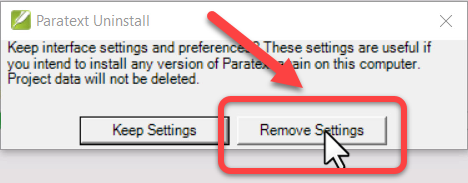
a. आपको “Remove settings” पर क्लिक करना होगा:
-
अनइंस्टॉल करने के बाद:
a. My Paratext 9 Project फ़ोल्डर को कट करके नई स्थान पर पेस्ट करें।
-
दोबारा इंस्टॉल करते समय, My Paratext Projects फ़ोल्डर की स्थान बदलें:
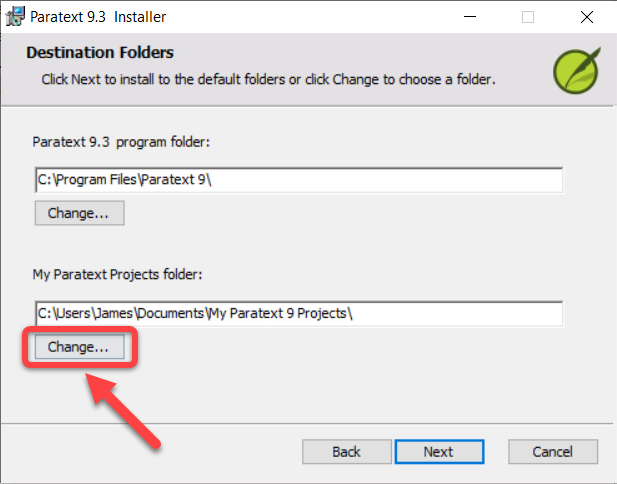
a. My Paratext Projects फ़ोल्डर के नीचे Change बटन पर क्लिक करें:
b. नई स्थान चुनें (हम डिफ़ॉल्ट स्थान की सलाह देते हैं, जो है C:\My Paratext 9 Projects)।
c. OK पर क्लिक करें
- इंस्टॉलेशन जारी रखें
We recommend installing Paratext in the default location, which is C:\My Paratext 9 Projects.
The best way to do this is to uninstall and reinstall Paratext to make a change to My Paratext Projects folder location.
Here are a couple of key points for doing this:
-
Before uninstalling:
a. Save your current layout (Paratext menu > Save current layout).
-
When uninstalling:
a. You must click “Remove settings”:
-
After uninstalling:
a. Cut and paste the My Paratext 9 Project folder to the new location.
-
When reinstalling, change the My Paratext Projects folder location:
a. Click the Change button under My Paratext Projects folder:
b. Choose the new location (We recommend the default location, which is C:\My Paratext 9 Projects).
c. Click OK
- Continue with the installation
English से मशीन-अनुवादित








