Recomendamos instalar o Paratext no local padrão, que é C:\My Paratext 9 Projects.
A melhor maneira de fazer isso é desinstalar e reinstalar o Paratext para alterar a localização da pasta My Paratext Projects.
Aqui estão alguns pontos-chave para fazer isso:
-
Antes de desinstalar:
a. Salve seu layout atual (menu Paratext > Save current layout).
-
Ao desinstalar:
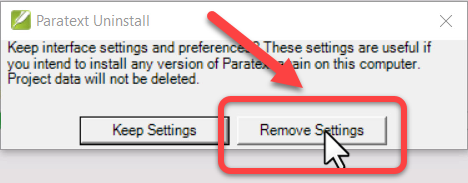
a. Você deve clicar em “Remove settings”:
-
Após desinstalar:
a. Corte e cole a pasta My Paratext 9 Project para o novo local.
-
Ao reinstalar, altere a localização da pasta My Paratext Projects:
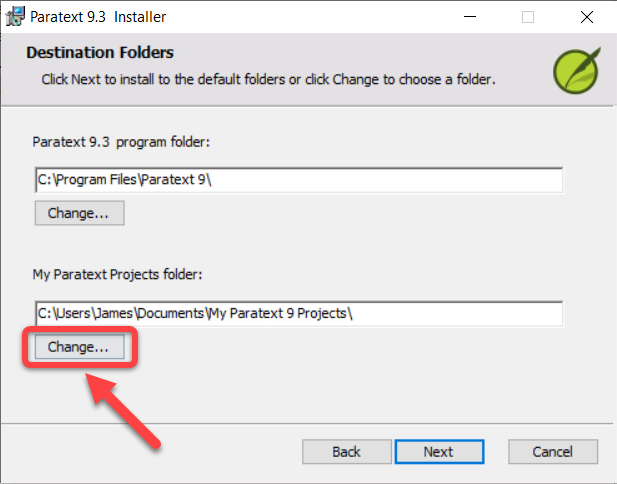
a. Clique no botão Change (Alterar) abaixo de My Paratext Projects folder:
b. Escolha o novo local (Recomendamos o local padrão, que é C:\My Paratext 9 Projects).
c. Clique em OK
- Continue com a instalação
We recommend installing Paratext in the default location, which is C:\My Paratext 9 Projects.
The best way to do this is to uninstall and reinstall Paratext to make a change to My Paratext Projects folder location.
Here are a couple of key points for doing this:
-
Before uninstalling:
a. Save your current layout (Paratext menu > Save current layout).
-
When uninstalling:
a. You must click “Remove settings”:
-
After uninstalling:
a. Cut and paste the My Paratext 9 Project folder to the new location.
-
When reinstalling, change the My Paratext Projects folder location:
a. Click the Change button under My Paratext Projects folder:
b. Choose the new location (We recommend the default location, which is C:\My Paratext 9 Projects).
c. Click OK
- Continue with the installation
Tradução automática de English








