Gracias, Dan, por tu buena pregunta. ¡Bienvenido a la comunidad!
Hay muchas buenas razones por las que NO queremos que la gente edite manualmente los archivos USFM durante el proceso de maquetación/composición tipográfica, por lo que el Visor que te muestra el «USFM procesado» que se envía al programa de composición tipográfica (XeTeX) está principalmente allí con fines de diagnóstico. Muestra el resultado final de todo el preprocesamiento que ha tenido lugar debido a la multitud de ajustes en la Aplicación.
NO OBSTANTE, hay buenas noticias: Ya existe un mecanismo para hacer exactamente lo que pides automatizándolo por completo mediante reglas ingeniosas de búsqueda y reemplazo (llamadas Expresiones Regulares o RegEx). En la pestaña avanzada hay una opción para habilitar que PrintDraftChanges.txt se aplique al texto.
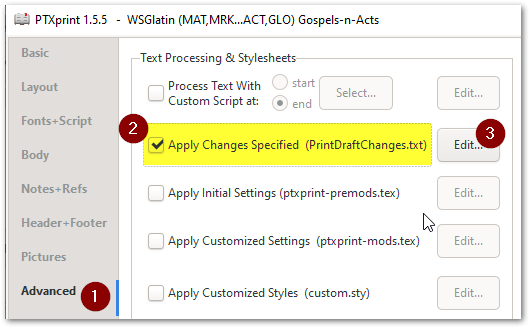
Una vez que hayas hecho clic en Editar, es posible que veas un archivo con un montón de reglas en él, o puede que solo haya un archivo vacío en el editor.
# A rule in this PrintDraftChange.txt file uses this syntax:
"Find what" > "Replace with"
Así que para esta tarea de «eliminar los encabezados duplicados», necesitarás agregar una regla RegEx que se verá algo así:
"\\rem (.+?)\r?\n\\s \1\r?\n" > "\\s \1\r\n"
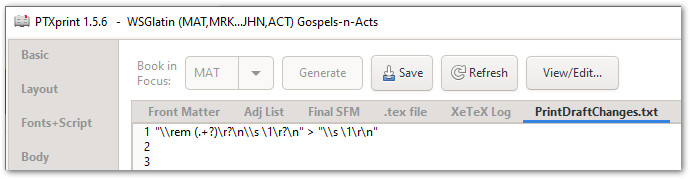
Si lo que tengo arriba no coincide exactamente con tus necesidades, ajústalo según sea necesario (por ejemplo, reemplaza \rem con el marcador que tengas en tu texto). Recomiendo encarecidamente usar un sitio como regex101.com para refinar tu expresión y probar tus cadenas de Búsqueda y Sustitución en un subconjunto pequeño de tus datos hasta que funcione.
Espero que esto te ayude, pero si sigues atascado, por favor pide más aclaraciones.
Thanks Dan for your good question. Welcome to the community!
There are many good reasons why we DON’T want people to be editing the USFM files manually during the layout/typesetting process, so the Viewer that shows you the “processed USFM” which gets fed into the typesetting program (XeTeX) is primarily there for diagnostic purposes. It shows the end result of all the pre-processing that has taken place due to the multitude of settings in the App.
HOWEVER, there is good news: There already is a mechanism to do exactly what you’re asking for by automating it completely through clever find and replace rules (called Regular Expressions, or RegEx). On the advanced tab is an option to enable PrintDraftChanges.txt to be applied to the text.
Once you’ve clicked on Edit, you might see a file with a bunch of rules in it, or there may just be an empty file in the editor.
# A rule in this PrintDraftChange.txt file uses this syntax:
"Find what" > "Replace with"
So for this “strip out the duplicate headings” task, you’ll need to add a RegEx rule which will look something like this:
"\\rem (.+?)\r?\n\\s \1\r?\n" > "\\s \1\r\n"
If what I have above doesn’t quite match your needs, then adjust it as needed (for example replace \rem with whatever marker you have in your text). I highly recommend using a site like regex101.com to refine your expression, and test out your Find and Substitution strings on a small subset of your data until it works.
I hope this helps, but if you’re still stranded, please ask for further clarification.
Traducción automática desde English