嗨 @bit!
很遺憾,我們大約一年前從 PTXprint 介面移除了這個選項(為每卷書產生獨立的 PDF),原因有三:
(i) 使用此功能的人非常少(自我們移除該功能以來,你是第二個詢問的人!)
(ii) 這在程式碼中造成了許多額外的複雜性,我們不希望必須處理這些問題
(iii) 透過命令列介面(command-line interface)可以實現你所請求的功能(詳情見下文)
基本上,如果你開啟命令提示字元並輸入此命令,你將獲得該書卷(例如 MRK)的 PDF:
"C:\Program Files\PTXprint\PTXprint.exe" -c ConfigName -b MRK -P ProjID
現在,透過將該命令包裝在包含書卷清單的迴圈中,它將對每卷書執行一次,最終你將獲得獨立的 PDF 檔案。以下是作為批次檔案(batch file)的樣子(你必須將自己的特定詳細資訊填入以黃色標示的 set 命令中):
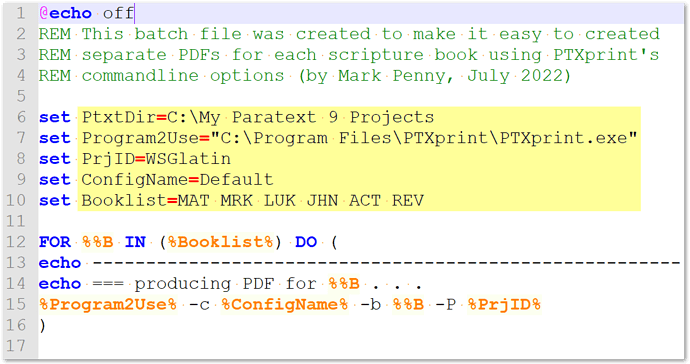
image1095×579 38 KB
解壓縮此 .bat 檔案並按需編輯:PTXprintAsSeparatePDFs.zip (520 Bytes)
請注意,還有許多其他命令列參數,即使常規的 -h(–help)沒有顯示任何內容,它們在使用時實際上也是有效的 {我們正在處理這個問題!}
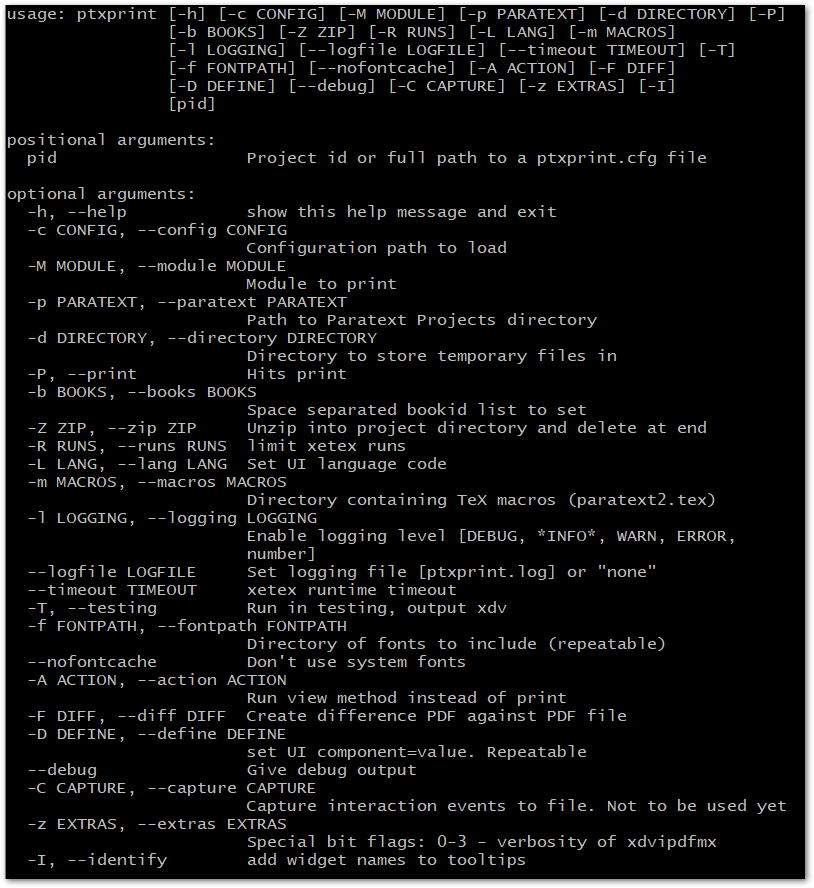
image814×888 28.9 KB
Hi @bit!
Unfortunately we removed this option from the PTXprint UI (to produce individual PDFs for each book) about a year ago due to 3 factors:
(i) very few people used it (you’re the 2nd person who has asked about it since we removed it!)
(ii) it created a lot of additional complications in the code which we would rather not have to deal with
(iii) it is possible to do what you are requesting through the command-line interface (see details below)
Essentially, if you open a command prompt and type in this command, you’ll get a PDF of just that book (e.g. MRK):
"C:\Program Files\PTXprint\PTXprint.exe" -c ConfigName -b MRK -P ProjID
Now, by wrapping that command in a loop with a list of books, it will run it once per book, and you’ll end up with individual PDFs. Here’s what it would look like as a batch file (and you will have to put your own specific details into the set commands highlighted in yellow):
image1095×579 38 KB
Unzip this .bat file and edit as needed: PTXprintAsSeparatePDFs.zip (520 Bytes)
Note that there are many other command-line parameters which actually work when used, even though the regular -h (–help) displays nothing {we’re working on that issue!}
image814×888 28.9 KB
機器翻譯自 English








