Halo @bit!
Sayangnya, kami telah menghapus opsi ini dari UI PTXprint (untuk menghasilkan PDF individual untuk setiap kitab) sekitar setahun yang lalu karena 3 faktor:
(i) sangat sedikit orang yang menggunakannya (Anda adalah orang ke-2 yang bertanya tentang ini sejak kami menghapusnya!)
(ii) ini menciptakan banyak komplikasi tambahan dalam kode yang lebih baik tidak kami hadapi
(iii) dimungkinkan untuk melakukan apa yang Anda minta melalui antarmuka baris perintah (lihat detail di bawah)
Secara esensial, jika Anda membuka prompt perintah dan mengetik perintah ini, Anda akan mendapatkan PDF hanya untuk kitab tersebut (mis. MRK):
"C:\Program Files\PTXprint\PTXprint.exe" -c ConfigName -b MRK -P ProjID
Kini, dengan membungkus perintah tersebut dalam loop dengan daftar kitab, itu akan menjalankannya sekali per kitab, dan Anda akan berakhir dengan PDF individual. Berikut penampilannya sebagai file batch (dan Anda harus memasukkan detail spesifik Anda sendiri ke dalam perintah set yang disorot kuning):
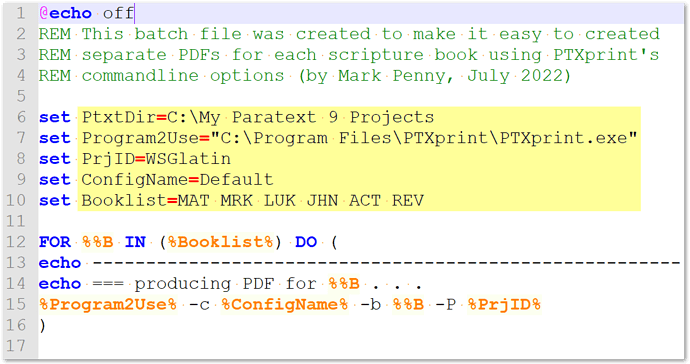
image1095×579 38 KB
Ekstrak file .bat ini dan edit sesuai kebutuhan: PTXprintAsSeparatePDFs.zip (520 Bytes)
Perhatikan bahwa ada banyak parameter baris perintah lain yang sebenarnya berfungsi ketika digunakan, meskipun -h (–help) reguler tidak menampilkan apa pun {kami sedang bekerja pada masalah itu!}
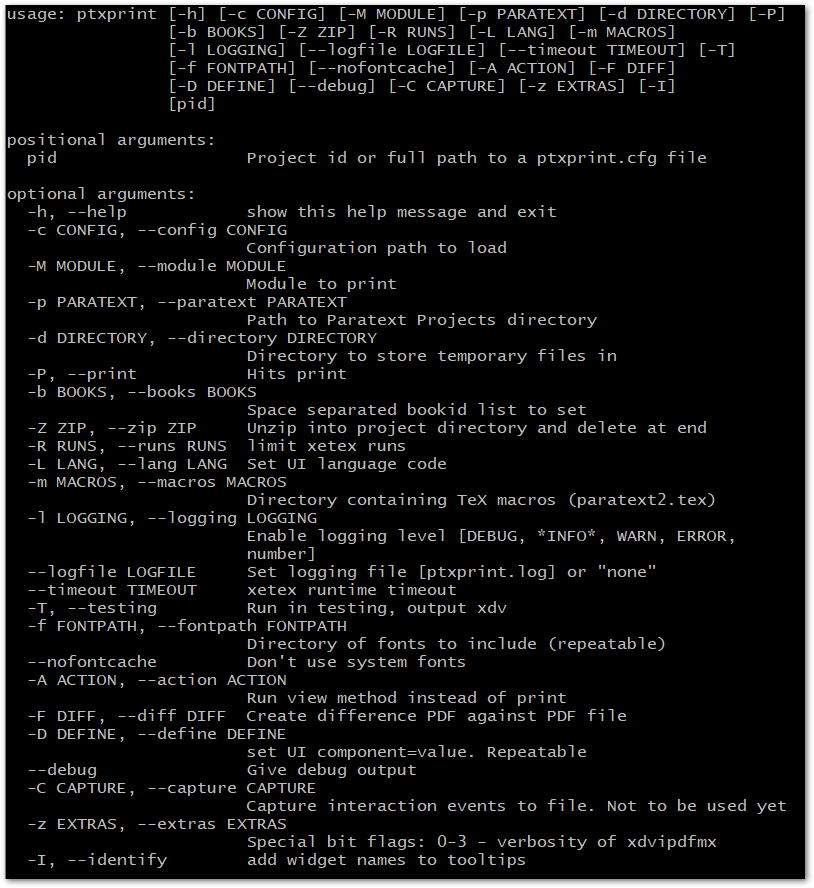
image814×888 28.9 KB
Hi @bit!
Unfortunately we removed this option from the PTXprint UI (to produce individual PDFs for each book) about a year ago due to 3 factors:
(i) very few people used it (you’re the 2nd person who has asked about it since we removed it!)
(ii) it created a lot of additional complications in the code which we would rather not have to deal with
(iii) it is possible to do what you are requesting through the command-line interface (see details below)
Essentially, if you open a command prompt and type in this command, you’ll get a PDF of just that book (e.g. MRK):
"C:\Program Files\PTXprint\PTXprint.exe" -c ConfigName -b MRK -P ProjID
Now, by wrapping that command in a loop with a list of books, it will run it once per book, and you’ll end up with individual PDFs. Here’s what it would look like as a batch file (and you will have to put your own specific details into the set commands highlighted in yellow):
image1095×579 38 KB
Unzip this .bat file and edit as needed: PTXprintAsSeparatePDFs.zip (520 Bytes)
Note that there are many other command-line parameters which actually work when used, even though the regular -h (–help) displays nothing {we’re working on that issue!}
image814×888 28.9 KB
Diterjemahkan secara otomatis dari English








