0
599 次瀏覽

Hi, in paratext 8, I can see the name of the users who have editing rights on the current chapter and book in the title bar. In paratext 9 (9.0.100.16) , these names are not displayed. Is there a reason for this?Capture

舊文章 - 以原文顯示
Paratext (150 點) 提出 | 599 次瀏覽

6 個回答

+2
最佳回答

Currently you can see if you have editing rights here via a tooltip (see yellow highlight):

image
The most straightforward change here, in terms of development, would be to add the names of anyone who has editing permission to this tooltip. This is our preferred way forward, as it is very simple. It also makes it clear who has editing permission here, where the current “editable” tooltip isn’t explicit - it doesn’t really tell you “you can edit this chapter”. The current “editable” tooltip also doesn’t help an admin know who else has editing permission here, because they don’t see it (unless they also have editing permission here).

We did also have UI to make this information visible without checking the tooltip, but there wasn’t time to implement it in the initial release of Paratext 9.0.

We had competing proposals:

  • Always show information about which people can edit here.
  • Only show whether or not you have editing permission here.

Something along the following lines:
Green icon/dot by the Paratext icon in the tab toolbar (or green scroll group badge): You have editing permission here, no one else does.
No coloured dot (or grey scroll group badge): no one has permission to edit here.
Orange: You have editing permission here, others do too (this would be green in the proposal where we only show whether you can edit here).
Black: You do not have editing permission here, someone else does (this would be omitted from the proposal where we only show whether you can edit here).
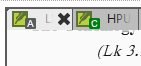
image
If there was no scroll group badge visible (this happens when there’s only one scroll group in use), a coloured dot would appear in that location to indicate whether someone has editing permission here.

Green and orange are colours which can be identified by people with most CVD types. Normally we would combine shape and colour so that the different states can be determined by someone with colour vision deficiency. However there is not a lot of space in the titlebars for extra things, we don’t want to clutter them and we can’t apply shape to the scroll group badge when we colour that. The information would also be discoverable via the title bar tooltip for colour vision deficient people (tooltip not accessed only via the icon). The main drawback of the design above, which combines the scroll group badges with the colour indicating who can edit this chapter is that those two things are not linked, and the separate meanings might be difficult to interpret.


舊文章 - 以原文顯示
[Moderator]
(1.2k 點) 提出

已重新顯示
0

I asked the same question in October 19
[Link Removed]
and was given this answer This was a deliberate change to simplify the interface.

Maybe if more people ask for the feature to be brought back, the developers might do it? It is one of the reasons I prefer using Paratext 8 for most of my projects. I am only using PT 9 for one project.
Iver+Larsen

舊文章 - 以原文顯示
(869 點) 提出
已重新顯示

Thanks

舊文章 - 以原文顯示
+1

This information was also hidden for reasons of security. It is too easy when making screenshots to forget to redact user names (I see you did in yours). This is especially important for folk in sensitive areas. So making PT9 just NOT show them was an easy solution.

And while I personally agree with the simplification, as tabbing just won’t elegantly support such long “titles”, I do miss quickly seeing who currently has editing rights to a particular project.

So is it possible to make a mouse hover show the project name including who can edit it in the popup “tool-tip”?

舊文章 - 以原文顯示
(370 點) 提出

I agree with davidc78 ’s explanation of why we made this change.

I’d like to take this to the User Interface people, suggesting they find an easy way to see who has editing rights on a project, such as a mouseover, and give them free reign to think about options. You probably won’t hear much until after Tuesday, due to Easter.

Blessings!

Jonathan+Robie

舊文章 - 以原文顯示
0

I don’t see these tooltips in my PT9 in Wasta 18.04, updates applied. Currently, the only way I can see whether I have editing permissions is to resize a project pane, making the title bar wide enough to display the “(Editable)” label.

I like the idea of a coloured dot, but I don’t like moving the colour indicator from a dot to the scroll group badge, which adds the complexity of two different indicators for the same information. Would it be possible to place the coloured dot either above or to the left of the scroll group badge? It could overlap with the lower half of the Paratext icon, I think, or simply sit next to the upper half of the PT icon, whether the scroll group badge is present or not.

As an administrator I really do need to see the full editing permission list. Placing all editors in a tooltip sounds like a great idea.

Thank you again for a great product!

舊文章 - 以原文顯示
(670 點) 提出
0

Perhaps one thing that would be helpful for us as users and for the developers to consider is what reason(s) we have for wanting to see the name of the person/people with editing rights.

I’m another one who misses this, but I also like simplicity and lack of clutter. The most common reason I’d like to know who has editing rights to a particular bit is so we as a team can decide who makes changes when we’re working as a team.

Obviously you can find out who makes changes by everyone trying to and then discovering who is able to do so without the orange bar appearing.

This note is helpful and it’s better than a modal dialogue box that we had before, but it’s rather annoying when you make an accidental change keystroke and it makes it a little cumbersome to remember who does have editing rights as well as being less than obvious when more than one person has editing permission.

Since I started writing this other messages came in suggesting the tooltip. This would probably be helpful.

Personally I don’t think it’s as important to mention ‘Standard Translation’ in the title bar. Different icons for distinguishing the kinds of translation and maybe a tooltip would be sufficient. The people who have the right to edit a portion seems more likely to be pertinent to me.

舊文章 - 以原文顯示
(510 點) 提出

I also wanted to suggest that a grey/gray background for non-editable text would be a very helpful indicator too. That is a fairly common idiom on computers - white background means editable, and grey means displayed and selectable but not editable. That is used within Basic view, and obviously if some non-editable text is shown in Basic view there’s no point distinguishing between editable and non-editable (protected) text.

舊文章 - 以原文顯示
0

Yes, all of these things are on our radar too. I agree the banner is a bit aggressive if you accidentally click in the wrong window. I’d like it if it could perhaps wait for a few keystrokes before appearing, or the window might flash an orange border to hint that this isn’t allowed for the first few keystrokes.

We’ve also thought about greying out the background of non-editable texts. We’d also like to be able to let people choose their background colour from white, dark or sepia someday. Personally I find a yellowish background easier to work with than white or dark modes. So we might do something else to hint that this text is non-editable, or do something which works with that suggestion. Then we have to make all of our highlights and callers work with each background/mode - there’s always a lot of theme work to do with contrast and CVD concerns.

舊文章 - 以原文顯示
[Moderator]
(1.2k 點) 提出

相關問題

0
1 個回答 299 次瀏覽
image1552×703 86.2 KB 您好, 我是一個專案的管理員(三個管理員之一),但我無法儲存對「書名」(Book Names)的變更(請參閱附件)。「確定」(OK)按鈕是灰色的。我找不到修改權限以執行此操作的方法。 請注意,該專案的第一位管理員確實擁有此權限。我和另一位指定的管理員則沒有。 解決方案是什麼? 謝謝 anon392948
anon392948 143 提出 已提問 2月 7, 2023
0
3 個回答 365 次瀏覽
當我在專案中將我的聖經術語清單設為預設值,並開啟「聖經術語」工具時,視窗標題正確地顯示為「專案聖經術語:XXX」(從法語翻譯而來)。 如果我選擇了不同的聖經術語清單,這個視窗的標題是否應該變更為反映目前選取的術語清單?似乎許多譯者在很多時候都會混淆自己正在使用哪個清單,以及如何使用這些清單。更新標題可能是朝正確方向邁出的一步嗎?
jeffh 1.4k 提出 已提問 12月 2, 2020
0
3 個回答 342 次瀏覽
I am trying to adjust the line spacing of the main title in Print Draft in PrintDraft-mods.sty, because some main titles ... in the same way. How can the line spacing be changed?
Paulus Kieviet 517 提出 已提問 8月 21, 2019
0
1 個回答 210 次瀏覽
我們的專案使用非拉丁文字系統,且沒有大小寫之分,因此將名稱以斜體格式呈現有助於讀者識別人名。有沒有簡單的方法可以做到這一點?目前我使用 \pn 手動標記了一些名稱,然後在 PTX Print 中將這些名稱設為斜體。但既然「關鍵詞彙」(key terms)工具能識別我們輸入的專有名詞,我想知道是否可以利用該工具為所有名稱自動添加標記?有任何建議嗎?
MW 提出 已提問 7月 23, 2024
+4
4 個回答 673 次瀏覽
有人已經建立,或目前正在建立一個自訂的 Biblical Terms Tool(聖經術語工具)清單,其中包含聖經中所有的人名,並將每個人名與舊約和新約中所有包含該人名的經文引用關聯起來嗎? 追蹤在 Major Biblical Terms(主要聖經術語) ... 名的星號標記) 毫無疑問,還有其他我沒想到的問題 但儘管有這些挑戰,我認為這樣的清單會很有幫助
viverechristus 296 提出 已提問 6月 16, 2022
Welcome to Support Bible, where you can ask questions and receive answers from other members of the community.
They devoted themselves to the apostles’ teaching and to fellowship, to the breaking of bread and to prayer.
Acts 2:42
3,046 個問題
6,006 個回答
5,671 則評論
2,026 位使用者




