在「提供意見回饋」或「回報問題」對話方塊中,有一個很有用的功能是報告會包含 Paratext 記錄檔,這通常能提供更多關於發生狀況的詳細資訊。
但如果 Paratext 突然關閉,或 Windows 顯示它已停止運作,當您重新啟動 Paratext 並提交問題報告時,Paratext 記錄檔可能不會包含 Paratext 停止時的事件,因為它很可能在有機會儲存記錄檔之前就已結束。
因此,如果您想要回報當機或突然結束的情況,以下是您可以提供更多技術資訊的方法。
在 Windows 中,有一個名為「事件檢視器」(Event Viewer)的程式。您可以在開始選單中搜尋它。
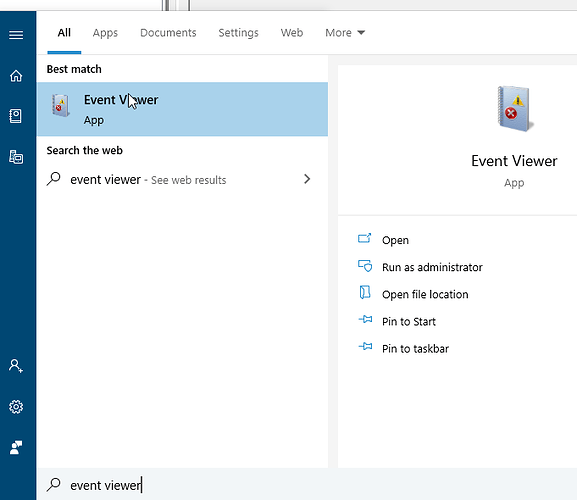
image681×590 19.6 KB
開啟事件檢視器後,在左側開啟「Windows 記錄」(WIndows Logs)資料夾,並選取「應用程式」(Application)。
現在,在中间的列表中查找標記為「錯誤」(Error)的項目,並查看其中是否提到了 Paratext。
此範例顯示了一個來自 Paratext 的事件。
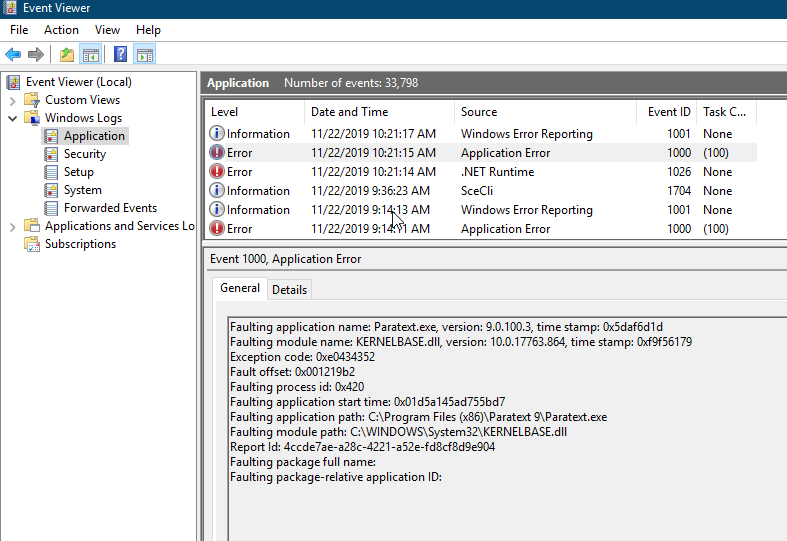
image787×541 32.9 KB
若要複製資訊發送給我們,請右鍵點擊該項目,選擇「複製 > 以文字複製詳細資訊」(Copy > Copy details as text),然後將其貼上到您的問題報告中。
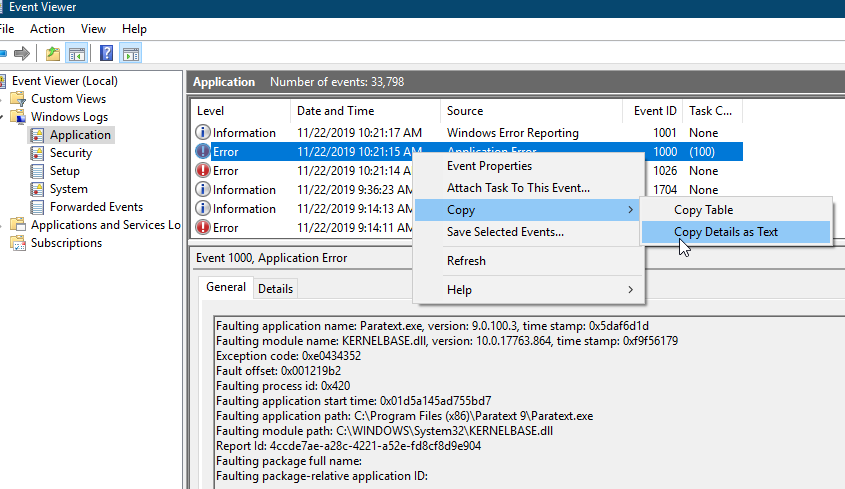
image845×489 34.4 KB
One useful thing in the Give Feedback or Report a Problem dialog is the report includes a Paratext log file which often indicates some more detail about what happened.
But if Paratext suddenly shuts down, or Windows says it has stopped working, if you restart Paratext and submit a problem report, the Paratext log probably will not include the events when Paratext stopped, because it likely exited before it had a change to save the log file.
So if you want to report a crash or sudden exit, here’s how you can give us more technical information.
In Windows, there is a program called Event Viewer. You can search for it in the Start menu.
image681×590 19.6 KB
Once Event viewer opens, open the “WIndows Logs” folder on the left and select Application.
Now look through the list in the middle for something labeled “Error” and see if it mentions Paratext.
This example shows an event from Paratext.
image787×541 32.9 KB
To copy the information to send us, right click on the item, choose “Copy > Copy details as text” then paste that into your problem report.
image845×489 34.4 KB
機器翻譯自 English