Olá CrazyRocky & anon719148
Você pode ter múltiplas buscas/substituições armazenadas em um arquivo e executar uma
expressão que aponta para esse arquivo no RegExPal. A sintaxe é usar
"–>" e então apontar para o nome do arquivo com as substituições na caixa de busca.
Semelhante ao seguinte:
–>\Users\HastyDR\Desktop\smallcaps.txt
Nota: Não acho que funcione se o nome do caminho contiver espaços, o que
é a razão pela qual escolhi colocar o arquivo na minha área de trabalho.
Nesse arquivo, coloque declarações semelhantes às seguintes para todas as combinações de minúsculas para
maiúsculas no seu idioma.
(?<=\\sc\s[^\\]*?)a-->A
(?<=\\sc\s[^\\]*?)e-->E
(?<=\\sc\s[^\\]*?)i-->I
Uma vez que o arquivo for criado, execute o RegExPal e coloque -->nome_do_arquivo na caixa de
busca e execute como substituição. Observe que esse tipo de substituição ignora qualquer
texto que possa estar na caixa de diálogo de substituição.
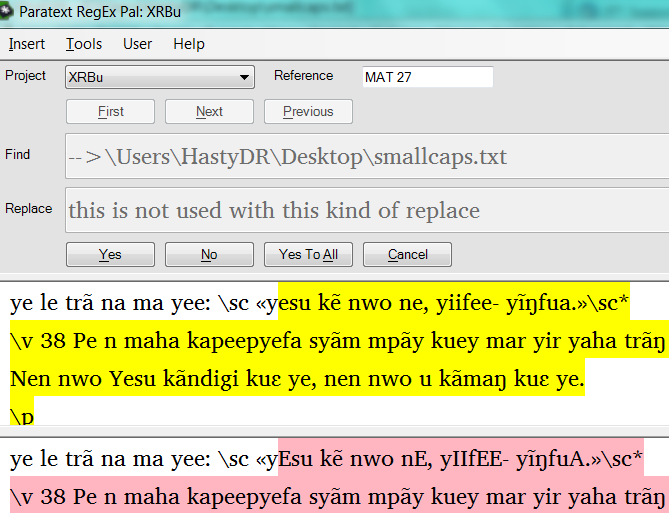
Veja a amostra na captura de tela a seguir da tela do RegExPal abaixo.
A forma como essa alteração funciona é que ela para na primeira correspondência em um
capítulo e seleciona o resto do capítulo. Você verá cada uma das
alterações na substituição destacada em rosa. Observe que as vogais minúsculas
destacadas em amarelo se tornam maiúsculas no destaque em rosa.
Observe que isso altera o texto real no projeto. Desfaça as alterações
alternando os casos na correspondência e na substituição para voltar ao
codificação original.
D anon467281
Global Publishing Services
Formador em Tipografia Bíblica & "especialista" em Expressões Regulares
Dallas, TX
cacnjcfmebdikdkd.png669×513 43.9 KB
Hi CrazyRocky & anon719148
You can have multiple find/replaces stored in a file and run an
expression that points to that file in RegExPal. The syntax is to use
"–>"and then point to the filename with the replaces in the find box.
Similar to the following:
–>\Users\HastyDR\Desktop\smallcaps.txt
Note: I don’t think it works if the path name contains any spaces, which
is why I chose to place the file on my desktop.
In that file place statements similar to the following for all lower to
uppercase combinations in your language.
(?<=\\sc\s[^\\]*?)a-->A
(?<=\\sc\s[^\\]*?)e-->E
(?<=\\sc\s[^\\]*?)i-->I
Once the file is created, run RegExPal and place -->filenamein the find
box and run as a replace. Note that this kind of replace ignores any
text that may be in the replace dialog box.
See the sample in the following screen capture of the RegExPal screen below.
The way this change works is that it stops on the first match in a
chapter and selects the rest of the chapter. You will see each of the
changes in the replacement highlighted in pink. Notice the lower case
vowels in the highlighted yellow become uppercase in the highlighted pink.
Note that it changes the actual text in the project. Undo the changes by
switching the cases on the match and replace to get back to the original
encoding.
D anon467281
Global Publishing Services
Scripture Typesetting trainer & Regular Expression “specialist”
Dallas, TX
cacnjcfmebdikdkd.png669×513 43.9 KB
Tradução automática de English