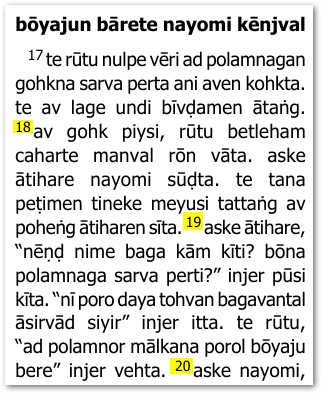
我假設您的起點是節次出現在段落中,如下所示:
實現您要求的最簡單方法是使用 Advanced(進階)標籤並套用一些變更。因此,請確保您使用的是「Full View」(完整檢視),然後啟用 Apply Changes.txt 選項,如下所示:
當您點擊 Edit…(編輯…)時,View+Edit(檢視+編輯)標籤應會顯示您的 changes.txt 檔案。
將以下行加入其中(如下所示):
"\\v " > "\\p\n\\v "
"\\p[\s\r\n]*\\p" > "\\p"
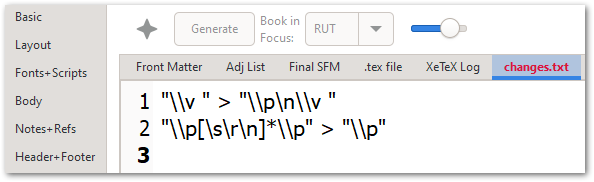
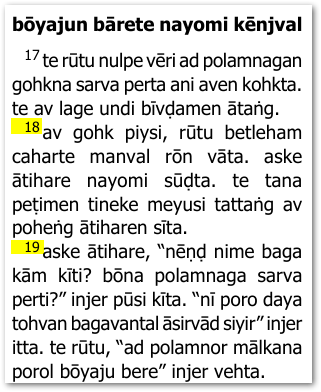
這些規則會在每一節之前放置 \p 標記,並移除任何重複/冗餘的 \p 標記。因此,最終結果應如下所示:
請注意,您可以透過稍微調整變更規則,使用 \m 來設定邊欄段落(不縮排):
"\\v " > "\\m\n\\v "
"\\p[\s\r\n]*\\m" > "\\p"
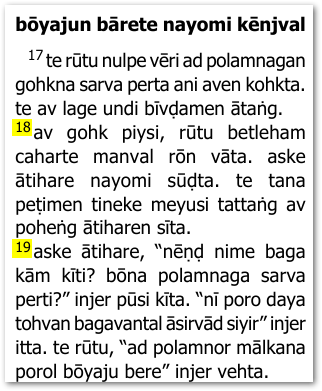
這將給您這種類型的版面配置(略有變化):
為了完整性,值得指出的是,「Marginal Verses」(邊欄節次)是另一種可能性,如果這有用的話:
這將產生這種版面配置(您可能需要在 Styles 標籤中調整 \v 標記的格式):

我相信這為您提供了足夠的選項以繼續前進。
I am assuming that your starting point is that verses appear within paragraphs like this:
The simplest way to do what you are asking for is to use the Advanced tab and apply some changes. So, ensure that you are using “Full View” and then enable the Apply Changes.txt option as shown below:
When you click on Edit… the View+Edit tab should show you your changes.txt file.
Add these lines to it (as shown below):
"\\v " > "\\p\n\\v "
"\\p[\s\r\n]*\\p" > "\\p"
These rules will place a \p marker before EVERY verse and remove any duplicate/redundant \p markers. So the end result should then appear like this:
Note that you could use \m for margin paragraphs (not-indented) by tweaking the change rules slightly:
"\\v " > "\\m\n\\v "
"\\p[\s\r\n]*\\m" > "\\p"
That would give you this kind of layout (slight change):
Just to be complete, it is worth noting that “Marginal Verses” is another possibility in case that is useful:
Which would result in this layout (you may need to adjust the formatting of the \v marker in the Styles tab):
I trust this gives you enough options to move forward.
機器翻譯自 English








