Kami merekomendasikan untuk menginstal Paratext di lokasi default, yaitu C:\My Paratext 9 Projects.
Cara terbaik untuk melakukan ini adalah dengan menghapus (uninstall) dan menginstal ulang Paratext untuk mengubah lokasi folder My Paratext Projects.
Berikut adalah beberapa poin penting untuk melakukan ini:
-
Sebelum menghapus (uninstall):
a. Simpan tata letak (layout) Anda saat ini (menu Paratext > Save current layout).
-
Saat menghapus (uninstall):
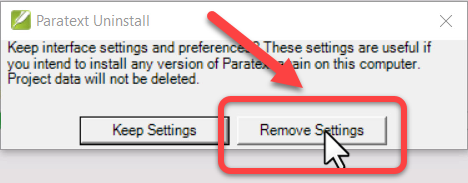
a. Anda harus mengklik “Remove settings”:
-
Setelah menghapus (uninstall):
a. Potong dan tempel folder My Paratext 9 Project ke lokasi baru.
-
Saat menginstal ulang, ubah lokasi folder My Paratext Projects:
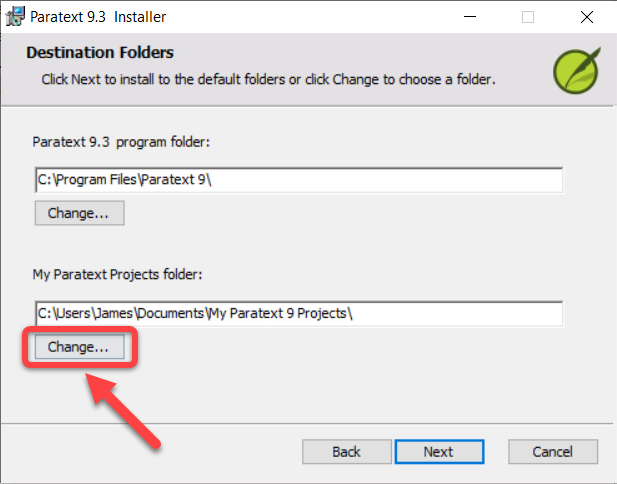
a. Klik tombol Change di bawah My Paratext Projects folder:
b. Pilih lokasi baru (Kami merekomendasikan lokasi default, yaitu C:\My Paratext 9 Projects).
c. Klik OK
- Lanjutkan dengan instalasi
We recommend installing Paratext in the default location, which is C:\My Paratext 9 Projects.
The best way to do this is to uninstall and reinstall Paratext to make a change to My Paratext Projects folder location.
Here are a couple of key points for doing this:
-
Before uninstalling:
a. Save your current layout (Paratext menu > Save current layout).
-
When uninstalling:
a. You must click “Remove settings”:
-
After uninstalling:
a. Cut and paste the My Paratext 9 Project folder to the new location.
-
When reinstalling, change the My Paratext Projects folder location:
a. Click the Change button under My Paratext Projects folder:
b. Choose the new location (We recommend the default location, which is C:\My Paratext 9 Projects).
c. Click OK
- Continue with the installation
Diterjemahkan secara otomatis dari English








