Bonjour CrazyRocky & anon719148
Vous pouvez stocker plusieurs recherches/remplacements dans un fichier et exécuter une
expression qui pointe vers ce fichier dans RegExPal. La syntaxe consiste à utiliser
"–>" puis à pointer vers le nom du fichier contenant les remplacements dans la boîte de recherche.
Similaire à ce qui suit :
–>\Users\HastyDR\Desktop\smallcaps.txt
Note : je ne pense pas que cela fonctionne si le nom du chemin contient des espaces, c'est
pourquoi j'ai choisi de placer le fichier sur mon bureau.
Dans ce fichier, placez des déclarations similaires à celles ci-dessous pour toutes les combinaisons de minuscules
en majuscules de votre langue.
(?<=\\sc\s[^\\]*?)a-->A
(?<=\\sc\s[^\\]*?)e-->E
(?<=\\sc\s[^\\]*?)i-->I
Une fois le fichier créé, exécutez RegExPal et placez -->nomdufichier dans la boîte de
recherche et exécutez-le en tant que remplacement. Notez que ce type de remplacement ignore tout
texte qui pourrait se trouver dans la boîte de dialogue de remplacement.
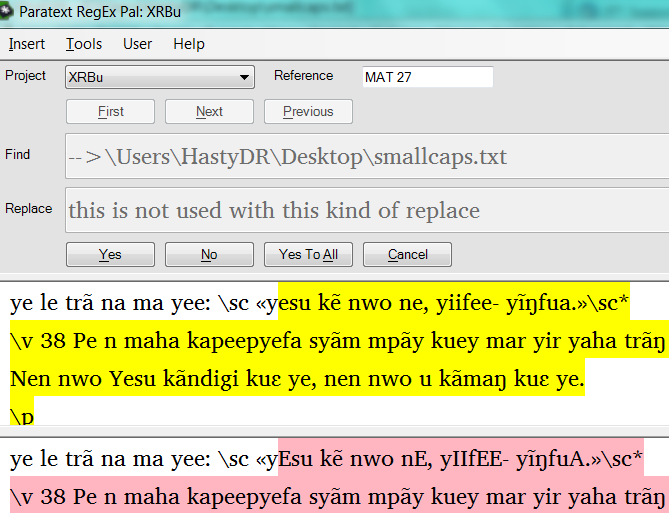
Consultez l'exemple dans la capture d'écran suivante de l'écran RegExPal ci-dessous.
Le fonctionnement de ce changement est qu'il s'arrête sur la première correspondance dans un
chapitre et sélectionne le reste du chapitre. Vous verrez chacun des
remplacements surlignés en rose. Remarquez que les voyelles minuscules
surlignées en jaune deviennent des majuscules dans le surlignage rose.
Notez que cela modifie le texte réel du projet. Annulez les modifications en
inversant les casses sur la correspondance et le remplacement pour revenir à l'encodage
d'origine.
D anon467281
Global Publishing Services
Formateur en typographie biblique & « spécialiste » des expressions régulières
Dallas, TX
cacnjcfmebdikdkd.png669×513 43.9 KB
Hi CrazyRocky & anon719148
You can have multiple find/replaces stored in a file and run an
expression that points to that file in RegExPal. The syntax is to use
"–>"and then point to the filename with the replaces in the find box.
Similar to the following:
–>\Users\HastyDR\Desktop\smallcaps.txt
Note: I don’t think it works if the path name contains any spaces, which
is why I chose to place the file on my desktop.
In that file place statements similar to the following for all lower to
uppercase combinations in your language.
(?<=\\sc\s[^\\]*?)a-->A
(?<=\\sc\s[^\\]*?)e-->E
(?<=\\sc\s[^\\]*?)i-->I
Once the file is created, run RegExPal and place -->filenamein the find
box and run as a replace. Note that this kind of replace ignores any
text that may be in the replace dialog box.
See the sample in the following screen capture of the RegExPal screen below.
The way this change works is that it stops on the first match in a
chapter and selects the rest of the chapter. You will see each of the
changes in the replacement highlighted in pink. Notice the lower case
vowels in the highlighted yellow become uppercase in the highlighted pink.
Note that it changes the actual text in the project. Undo the changes by
switching the cases on the match and replace to get back to the original
encoding.
D anon467281
Global Publishing Services
Scripture Typesetting trainer & Regular Expression “specialist”
Dallas, TX
cacnjcfmebdikdkd.png669×513 43.9 KB
Traduit automatiquement depuis English